Shortcuts in SystmOne
SystmOne is one of the main electronic patient record tools used in community care. There are lots of ways to get around in S1 (SystmOne), as well as good number of keyboard shortcuts. In this article I’ll show you a few useful ones, amd how to find the full list.
Ways to Get Around in SystmOne
There are lots of ways to get around in S1.
- Shortcut icons along the bottom status bar to take you to pathology, documents, appointments, prescriptions and tasks
- The menu at the top with entries for ecah of the above and many more
- F2 menu for favourite screens
- F12 menu for templates/autoconsultations/protocols
- Keyboard Shortcuts
- A home screen with configurable shortcuts
F2 Menu (Favourite Screens)
Pressing F2 will launch a quick menu where you can configure some favourite screens.
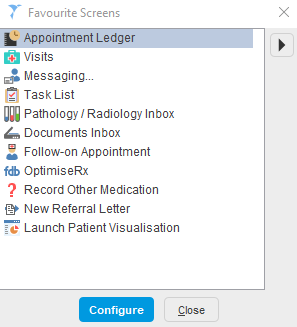
Hit the configure button and you can select some useful screens to save you remembering any other shortcuts to them.
Alternatively, if you have a specific workflow (eg: either when doing admin work, or if your role is more administrative in general), you enter just a small number of favourite screens, and instead of launching the menu hit the shortcuts below to cycle through your favourite screens directly
| Shortcut | Description |
|---|---|
| Ctrl + Shift + F2 | Move to next favourite screen |
| Ctrl + Alt + F2 | Move to previous favourite screen |
F12 Menu (Launcher for Templates/Protocols/Auto Consultations/Questionnaires)
If your practice has set up templates, protocols, auto consultations or questionnaires, or if you have installed these from a third party provider (eg: Ardens), then you can add these to a quick launch menu (F12)
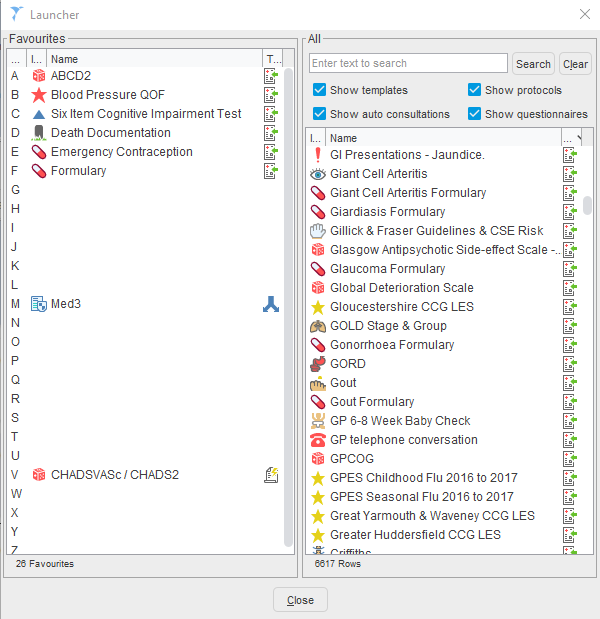
Search on the right, and if there are some that you’d like to access quickly, drag them to an empty letter on the left. To make things even faster, you can hit F12 followed by the letter to jump straight to the item without using your mouse. For example, in the list I’ve set up above, hitting F12 followed by M will launch the Med3 Protocol.
Home Screen
The starting screen when you launch S1 can be configured easily to take you quickly to where you want to go. You can set up the lower right to show a variety of information. Shortcut icons on the left can be quickly set up with the keyboard shortcut below
| Shortcut | Description |
|---|---|
| F8 | Takes you to the Home Screen |
| Ctrl Shift F8 | Add a shortcut on the home screen to your current screen |
Keyboard Shortcuts
There are lots of keyboard shortcuts in SystmOne, in fact it can be a bit overwhelming. I’d suggest picking a few that you’ll find useful and practicing with these before adding others to your repertoire.
| Shortcut | Description |
|---|---|
| F11 | Lock SystmOne |
| Ctrl H | Visits |
| Ctrl Shift L | Appointments Ledger |
| Ctrl T | Task List |
| Ctrl W | Pathology Inbox |
In the consultation/patient record you can set keyboard shortcuts for specific views (eg: tabbed journal, repeat prescriptions).
| Shortcut | Description |
|---|---|
| Ctrl 0 to 9 | Jump to specific view |
| Ctrl Shift 0 to 9 | Assign current view to a number |
| Ctrl P | Acute prescription |
Full List of Shortcuts
Press F1 for help in SystmOne and search for keyboard shortcuts to get a full list. There is a pdf copy of the list as of 05/2022 available here.
Final Notes
In upcoming articles, I’ll show you how you can access these shortcuts a little more easily using some AutoHotKey ideas.
Be careful accidentally pressing Ctrl Shift Enter as part of your keyboard shortcut practice. this is the panic button. Ask me how I found this shortcut out… 😂